
SaveFromInst : Instagram Downloader
Save videos, photos, Reels, Stories and other supported Instagram media from a link.
Everything you want to save from Instagram.
SaveFromInst is an independent tool provided by ShorteURL.com and is not affiliated with Instagram or Meta. Only save or reuse content you have permission to access and use.
Save From Insta is an Instagram media-saving tool from ShorteURL.com, designed to make the process of working with supported Instagram links simple and straightforward.
Many people find inspiration, educational materials, or entertaining clips while browsing social media. Keeping publicly accessible Instagram media for later viewing allows users to keep an archive of creative ideas, save personal memories, or view posts when offline access is necessary.
SaveFromInst simplifies this task through a straightforward, URL-based workflow. Instead of navigating confusing steps, users can rely on a clean web experience that requires no complicated setup. Built directly into ShorteURL.com, the tool provides a centralized place to process supported links quickly.
While SaveFromInst offers a convenient way to manage public media, users should always practice responsible use by respecting creator ownership and copyright guidelines when interacting with online media.
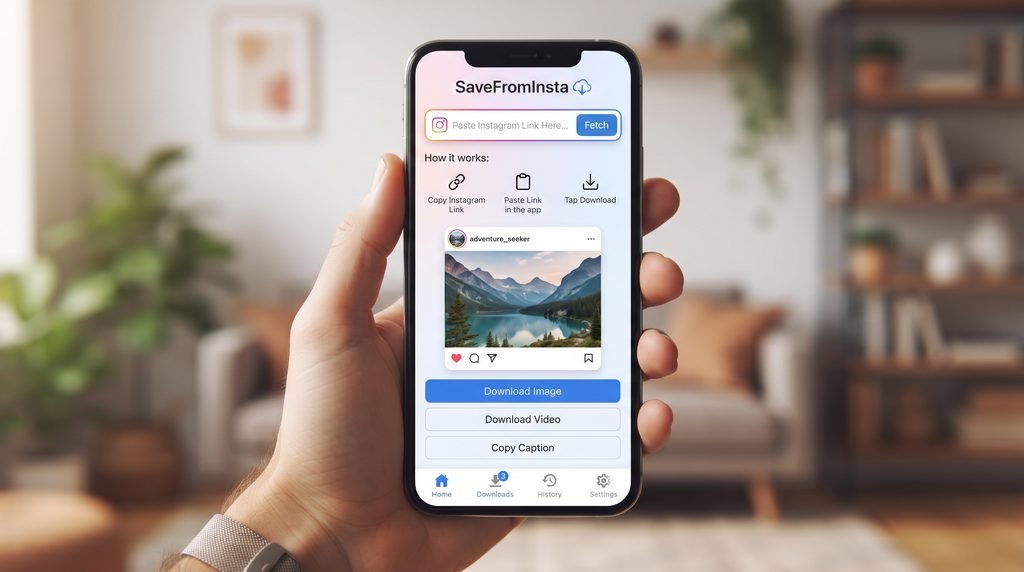
How Save From Inst Works
SaveFromInst processes supported Instagram URLs through a quick, step-by-step workflow designed for ease of use.
Step 1: Find the Instagram Content
Locate the Reel, video, photo, or carousel post you want to save. Make sure the content is published by a public account so the system can locate it.
Step 2: Copy the Link
Tap the Share button on the post within the Instagram application or browser interface, then select Copy Link to save the URL to your device’s clipboard.
Step 3: Paste the Link into SaveFromInst
Navigate to the SaveFromInst tool on ShorteURL.com. Tap or click inside the designated input field and paste the copied URL.
Step 4: Let the Tool Process the Link
Once submitted, the system checks the provided URL structure. It attempts to retrieve available media through its supported retrieval methods to prepare the output.
Step 5: Save the Available Media
If the media is accessible, a preview or save option will appear. Available results may vary depending on content type, platform updates, or account accessibility settings, so not every link can be processed.
What Can You Save with SaveFromInst?
Instagram hosts many different content formats. SaveFromInst is designed to recognize and process various public post types whenever the current system allows.
Instagram Reels
Instagram Reels are popular short-form videos featuring music, audio tracks, and visual effects. SaveFromInst allows users to process public Reel links to keep clips for personal reference, video editing practice, or offline inspiration where permitted. Successful retrieval depends on whether the Reel is public and hosted on servers supported by the tool’s current system.
Instagram Videos
Standard feed video posts differ slightly from Reels in length and layout. SaveFromInst processes standard public video links similarly, making it easy to archive helpful tutorials, product reviews, or long-form posts published on open accounts.
Instagram Photos
High-resolution images are central to the Instagram experience. SaveFromInst supports single-image public posts, giving users a way to keep reference pictures, artwork, or travel photography for personal projects or mood boards.
Instagram Carousel Posts
Carousel posts allow creators to share up to 10 items in a single upload. A carousel may contain:
- Multiple photos
- Multiple videos
- Mixed media (photos and videos combined)
When a carousel link is processed, available media results are typically presented individually where supported, letting users choose which specific file from the album they wish to keep.
Instagram Stories
Instagram Stories are temporary 24-hour posts. Because Stories feature distinct privacy settings and shorter availability windows, they carry additional accessibility limitations and are not always guaranteed to be available through every automated retrieval method.
Other Instagram Content
Instagram regularly updates its platform layout and media formats. SaveFromInst focuses strictly on content formats that its current retrieval system can legitimately process without making promises about unsupported features.
How to Copy an Instagram Link
To process media correctly, you need to extract the exact URL provided by Instagram.
Android and iPhone
- Open the Instagram app on your mobile device.
- Scroll to the Reel, video, photo, or post you want to process.
- Tap the Share icon (looks like a paper airplane or sharing arrow) near the post.
- Select Copy Link from the option menu.
- Open your web browser and navigate to SaveFromInst on ShorteURL.com.
- Tap the text box to Paste your copied link.
- Select the processing button to start retrieval.
Desktop
- Open your web browser and go to Instagram.com.
- Click on the post or Reel to expand it into a dedicated view.
- Highlight and copy the full URL directly from your browser’s address bar (or click the three dots on the post and select Copy Link).
- Go to SaveFromInst on ShorteURL.com and paste the URL into the input field.
Using Save From Inst on Mobile
SaveFromInst is built with a responsive design, making it convenient for mobile users on both major operating systems.
Android
- Open the Instagram app and locate your desired public content.
- Tap Share and select Copy Link.
- Launch your preferred mobile browser (such as Google Chrome).
- Visit ShorteURL.com and navigate to the SaveFromInst tool.
- Paste the link into the input field and proceed.
iPhone
- Open the Instagram iOS app.
- Tap the Share icon beneath the post and tap Copy Link.
- Open Safari or your preferred browser app.
- Navigate to SaveFromInst on ShorteURL.com.
- Tap the input box, select Paste, and process the submitted link.
Why a Browser Tool Can Be Convenient
Using a browser-based tool on mobile offers a smooth experience:
- No complicated setup: You do not need to alter system permissions or configure new software on your device.
- Webpage access: Works instantly from standard browsers without taking up device storage space.
- Easy copy/paste workflow: Switching between the Instagram app and your web browser takes only a few seconds.
- Fewer navigation steps: Single-page access means you paste the link and view results on one screen.
Save FromInst on Desktop
Processing Instagram links on a computer provides a clear desktop interface and fast clipboard navigation.
- Windows: Open any web browser (Chrome, Edge, Firefox), copy the Instagram URL using
Ctrl + C, open SaveFromInst on ShorteURL.com, paste withCtrl + V, and review the available media outputs. - Mac: Use Safari, Chrome, or Firefox to copy the post link via
Cmd + C. Paste it into the SaveFromInst field usingCmd + Vto view supported results. - Chromebook / Other Browsers: Simply navigate to the public post, copy the address bar URL, and submit it into the tool on ShorteURL.com.
The desktop experience allows users to quickly organize saved media into local PC folders for personal archiving.
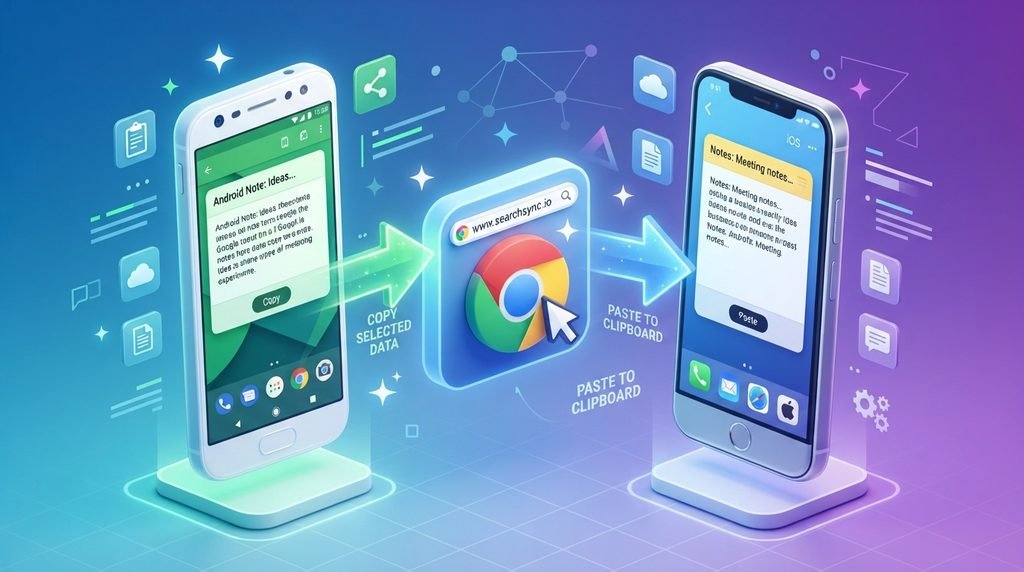
Why a Link-Based Tool Can Be Useful
Link-based media utilities offer flexibility for users who prefer direct, minimal tools over complex software platforms.
Quick Access
A URL-based workflow requires only a valid link to begin processing, making it accessible from almost any web-connected platform.
No Complicated Interface
SaveFromInst focuses on a single purpose. The simple design avoids unnecessary menus or complex options, keeping the focus entirely on link validation and media retrieval.
Useful for Personal Archives
A link tool helps users build personal reference folders, such as:
- Reference archives: Saving tutorials, design ideas, or recipes for quick offline viewing.
- Creator backups: Recovering your own previously published videos or photos if local files were lost.
- Inspiration boards: Collecting public creative samples for mood boards and research.
Works Across Common Devices
Whether you rely on a mobile phone, tablet, laptop, or desktop computer, link processing works consistently across standard operating systems and browsers.
One Place for Different Content Types
SaveFromInst handles photos, videos, Reels, and carousels within a unified interface, eliminating the need for different tools for each media type.
Understanding Public and Private Instagram Content
SaveFromInst operates within strict boundary conditions regarding account privacy and accessibility.
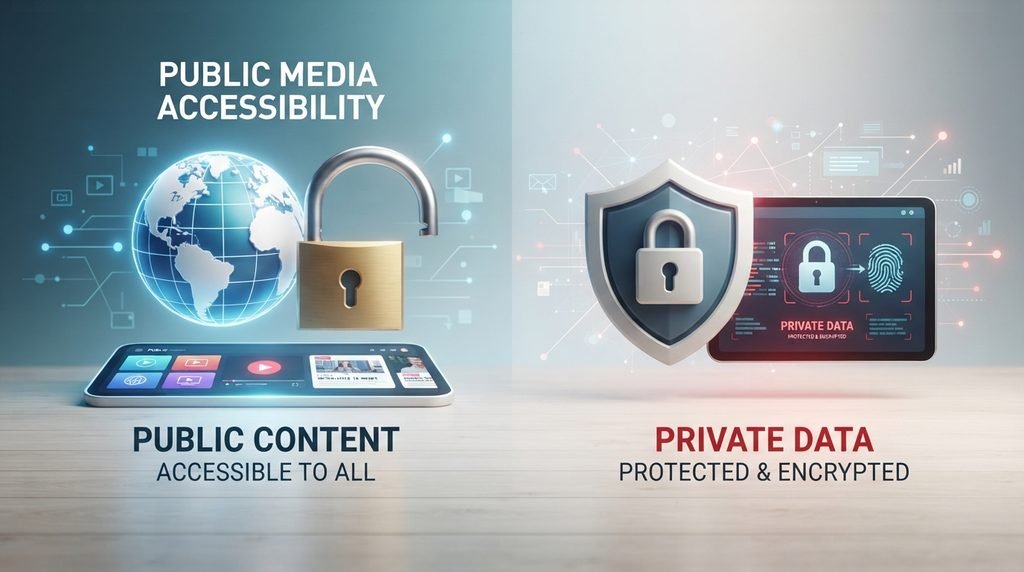
Public Content
Public content includes posts, Reels, and media published by accounts set to “Public.” This material is visible to anyone on or off Instagram, allowing link-processing tools to search for and validate the underlying media resource.
Private Accounts
Media posted by private profiles is restricted exclusively to confirmed followers of that account. SaveFromInst cannot bypass these privacy protections, meaning links originating from private accounts will not process.
Why Some Links Cannot Be Processed
If a link fails, it is usually due to one of the following factors:
- The account is set to private.
- The original post was removed or archived by the owner.
- The requested media format is unsupported by the current system.
- Instagram modified its URL structure or access protocols.
- Temporary network or retrieval limitations are affecting processing.
Privacy Notice: SaveFromInst will never ask users for Instagram passwords, account credentials, or private login details. The tool relies entirely on publicly accessible link structures.
Why Some Instagram Links May Not Work
When a link fails to produce a downloadable result, troubleshooting the cause helps set reasonable expectations.
Invalid or Incomplete Link
If a URL is missing parameters or copied incorrectly, the tool cannot identify the target post. Always ensure you copy the complete link directly from Instagram’s share menu.
Content Has Been Removed
If a creator deletes, archives, or restricts a post after you copy the link, the tool cannot retrieve non-existent media.
Account or Content Is Not Accessible
Age-restricted content, region-blocked posts, or accounts that recently switched settings from public to private cannot be retrieved.
Unsupported Content Type
Instagram regularly tests new post formats, audio attachments, or interactive elements. Not every URL structure represents a supported media type.
Temporary Service Issue
High traffic volume or server maintenance can temporarily interrupt media checks. Retrying the process after a few minutes often resolves the issue.
Instagram System Changes
Third-party utilities rely on standard web communication. When Instagram updates its technical backend, retrieval tools may require updates to adapt to those platform changes.
SaveFromInst Troubleshooting Guide
| Issue | Potential Cause | Recommended Action |
| The Download Button Does Nothing | Incomplete URL or browser script block | Check that the URL is complete, refresh your browser page, or try a different web browser. |
| The Tool Says “Link Is Invalid” | Broken or truncated URL | Return to Instagram, tap Share → Copy Link again, and ensure the full address is pasted. |
| No Media Result Appears | Account is private or post was deleted | Verify that the post is still viewable on a public browser window without logging in. |
| Page Works but Media Fails to Load | System validates URL, but retrieval is blocked | The URL structure is correct, but the media resource itself is restricted or temporarily unreachable. |
How SaveFromInst Handles Your Link
SaveFromInst follows a clear, automated sequence when processing a submitted address:
[User Submits URL]
       │
       ▼
[URL Validation Check] ────(Invalid)────► [Return Error Message]
       │
   (Valid)
       ▼
[Identify Content Type (Reel/Photo/Video)]
       │
       ▼
[Locate Public Media Resource]
       │
       ▼
[Display Available Save Option]
- Submission: The user pastes a supported Instagram web link into the input field.
- Validation: The system parses the URL string to confirm it matches recognized Instagram domain structures.
- Format Identification: The tool determines whether the address belongs to a Reel, standard video, photo, or carousel.
- Retrieval Attempt: The utility uses its supported retrieval method to check for available public media files.
- Output Delivery: If successful, the media result is rendered on-screen for the user to view and save locally.
Tips for Getting Better Results
Follow these quick suggestions to ensure smooth processing with SaveFromInst:
- Use Direct Links: Copy links straight from the official Instagram app or website rather than shortened or modified third-party links.
- Verify Public Status: Confirm that the post comes from an open, public profile before attempting to process it.
- Keep Browsers Updated: Use modern, updated web browsers (like Chrome, Safari, or Firefox) for proper script compatibility.
- Retry Temporary Failures: If a link fails due to temporary network issues, wait a short moment and try pasting it again.
- Protect Personal Credentials: Never share account passwords or personal security details with media-saving websites.
- Practice Responsible Use: Only save media you have permission to store, and respect the intellectual property of original creators.
Responsible Use of Saved Instagram Content
While media-saving utilities provide convenience, users must handle saved digital content responsibly.
Respect Creators
Saving a photo or video for offline viewing does not grant ownership over the material. Always respect the effort creators put into their work.
Personal Use vs. Redistribution
Saving media for personal reference, offline study, or private archiving is generally acceptable. However, re-uploading, reposting, or distributing someone else’s content as your own without permission violates copyright practices.
Copyright
Digital images, audio, and video files belong to their original creators or rights holders. Always seek permission or provide clear attribution if you plan to share media publicly.
Privacy
Never use web utilities to collect, store, or share private or sensitive content without explicit consent from the individuals involved.
Commercial Use
Using saved media in commercial projects, advertisements, or monetized channels without proper licensing can lead to copyright claims. Ensure you possess appropriate commercial rights before using saved assets business-wise.
Frequently Asked Questions
What is SaveFromInst?
SaveFromInst is an Instagram media-saving tool accessible on ShorteURL.com, designed to help users retrieve publicly available Instagram photos, videos, Reels, and carousels using simple post links.
Where can I find SaveFromInst?
You can access the SaveFromInst utility directly by visiting ShorteURL.com from any standard web browser on mobile or desktop devices.
How do I use SaveFromInst?
Copy the link of a public Instagram post using the “Share” menu, paste the URL into the input box on SaveFromInst, and select the processing option to view available media files.
Can I save Instagram Reels?
Yes, SaveFromInst supports publicly accessible Reel links, provided the content is open to the public and compatible with the tool’s current retrieval method.
Can I save Instagram photos and videos?
Yes, single image posts and standard public video posts can be processed through the link-based input field.
Does SaveFromInst support carousel posts?
Yes, when a carousel link containing multiple photos or videos is submitted, the tool attempts to present the available items individually where supported.
Can private Instagram content be processed?
No. SaveFromInst respects user privacy settings and cannot process or retrieve media from private Instagram accounts.
Why isn’t my Instagram link working?
Links may fail if the post is private, deleted, mistyped, temporarily unavailable, or if Instagram has recently updated its link structures.
Do I need to provide my Instagram password?
No. SaveFromInst does not require logins, passwords, or personal account credentials to function.
Can I use saved content anywhere I want?
No. Saved media remains the intellectual property of its original creator. You should only use saved content for personal reference unless you have explicit permission from the copyright owner.
Why does a previously working link stop working?
A link may stop working if the creator archives or deletes the post, changes their account setting to private, or if platform updates temporarily impact retrieval methods.
Final Thoughts
SaveFromInst on ShorteURL.com offers a clear, link-based workflow for users looking to manage public social media content. By focusing on simple URL pasting rather than complex software configurations, the tool makes accessing public photos, videos, Reels, and carousels straightforward across mobile and desktop browsers.
Because social media platforms updated their systems regularly, content availability and link processing may vary. For the best overall experience, ensure you submit publicly accessible links and handle saved media responsibly.Try SaveFromInst on ShorteURL.com